

설명
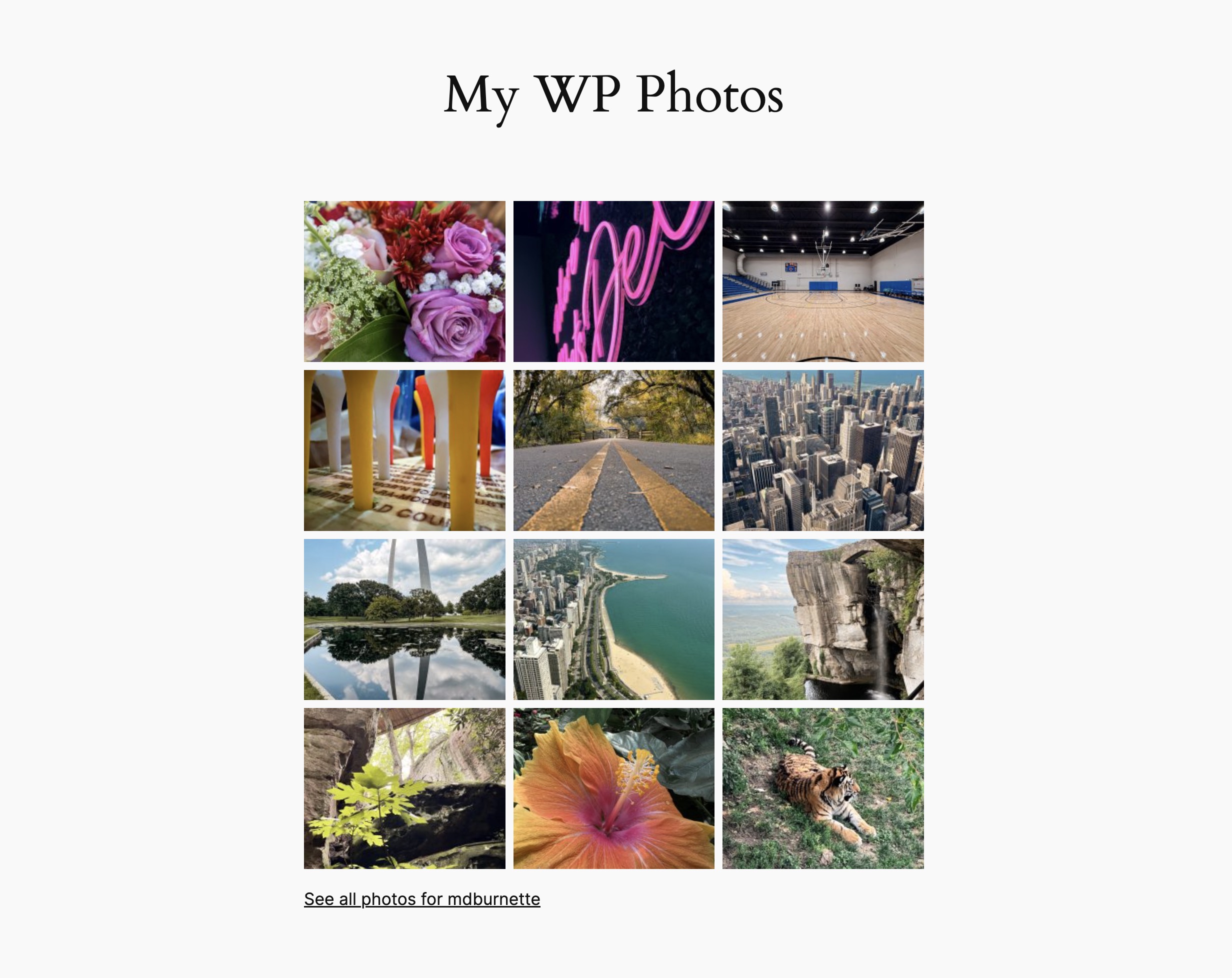
My WP Photos lets you display WordPress Photo Directory images on your site using either:
– the [wp_photo_directory] shortcode, or
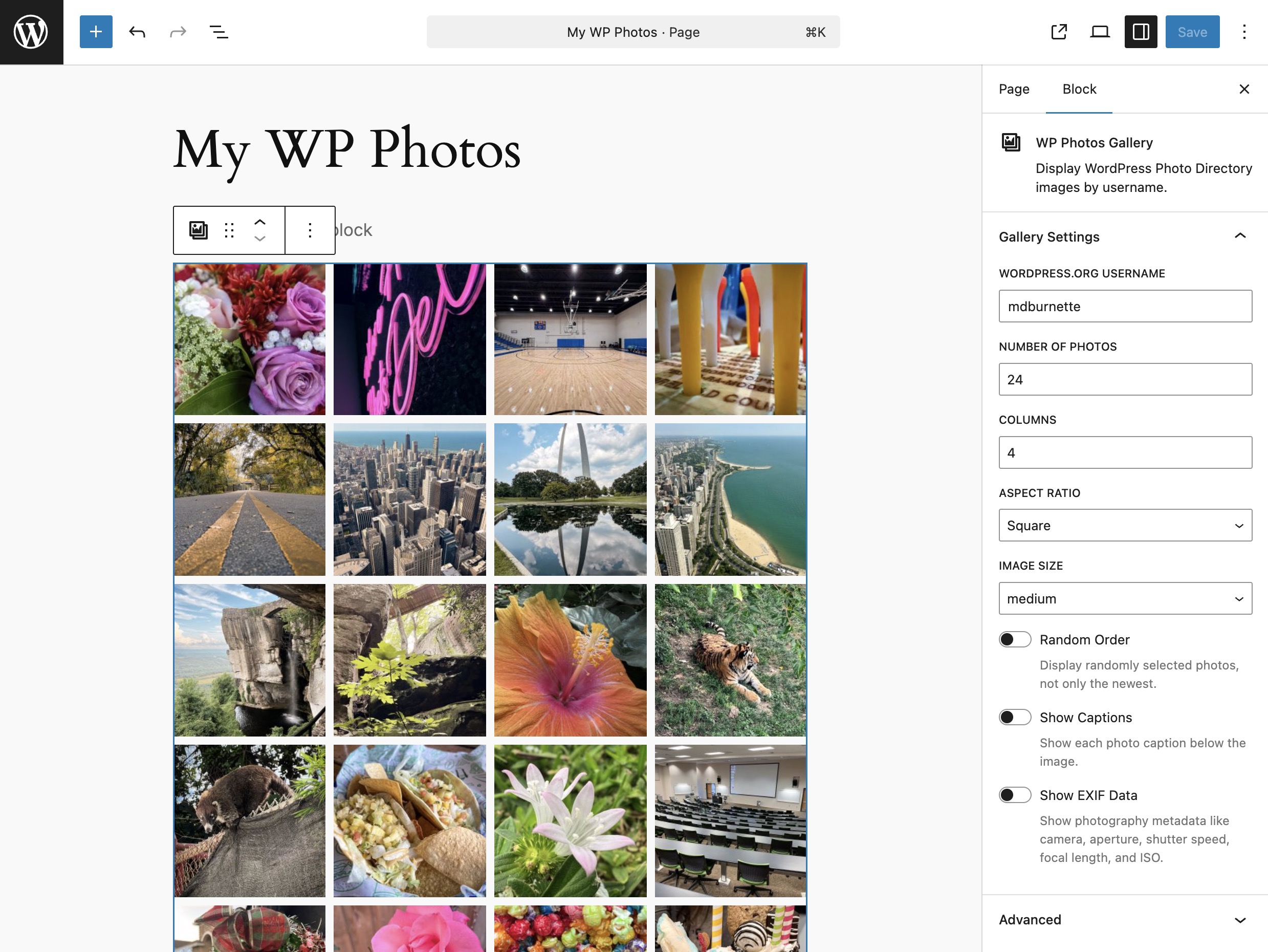
– the WP Photos Gallery block in the block editor.
Both the shortcode and block support the same settings:
– username: wordpress.org username (required unless set as plugin default)
– count: number of photos to display (any positive number)
– columns: number of columns (1-6)
– aspect: image aspect ratio. options: square, landscape, portrait
– size: photo size from the directory. options: medium, large, thumbnail, medium_large, 1536x1536, 2048x2048, full
– random: set to true to randomize photo selection (not only most recent photos)
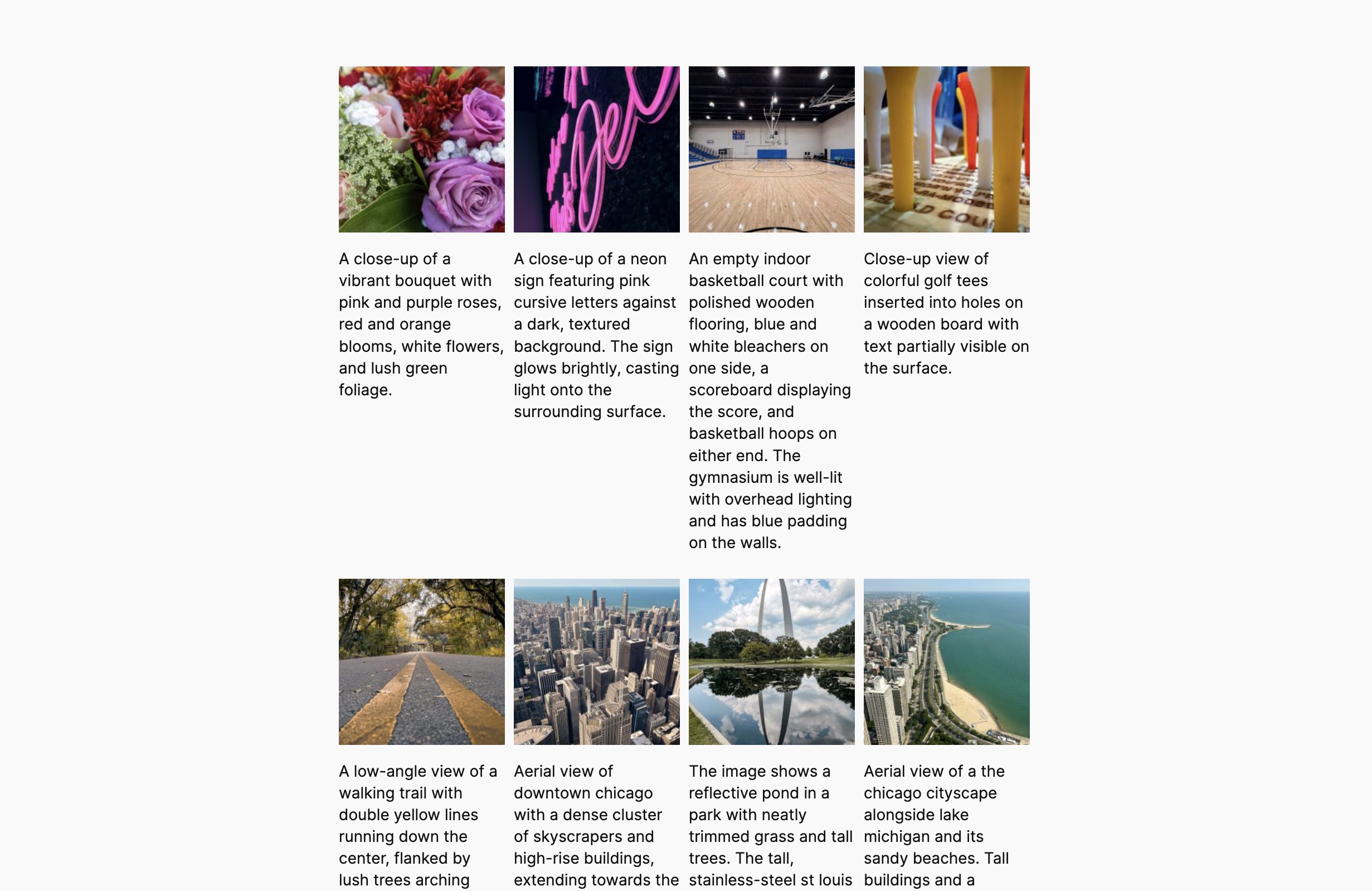
– show_caption: set to true to show each image caption/content below the image
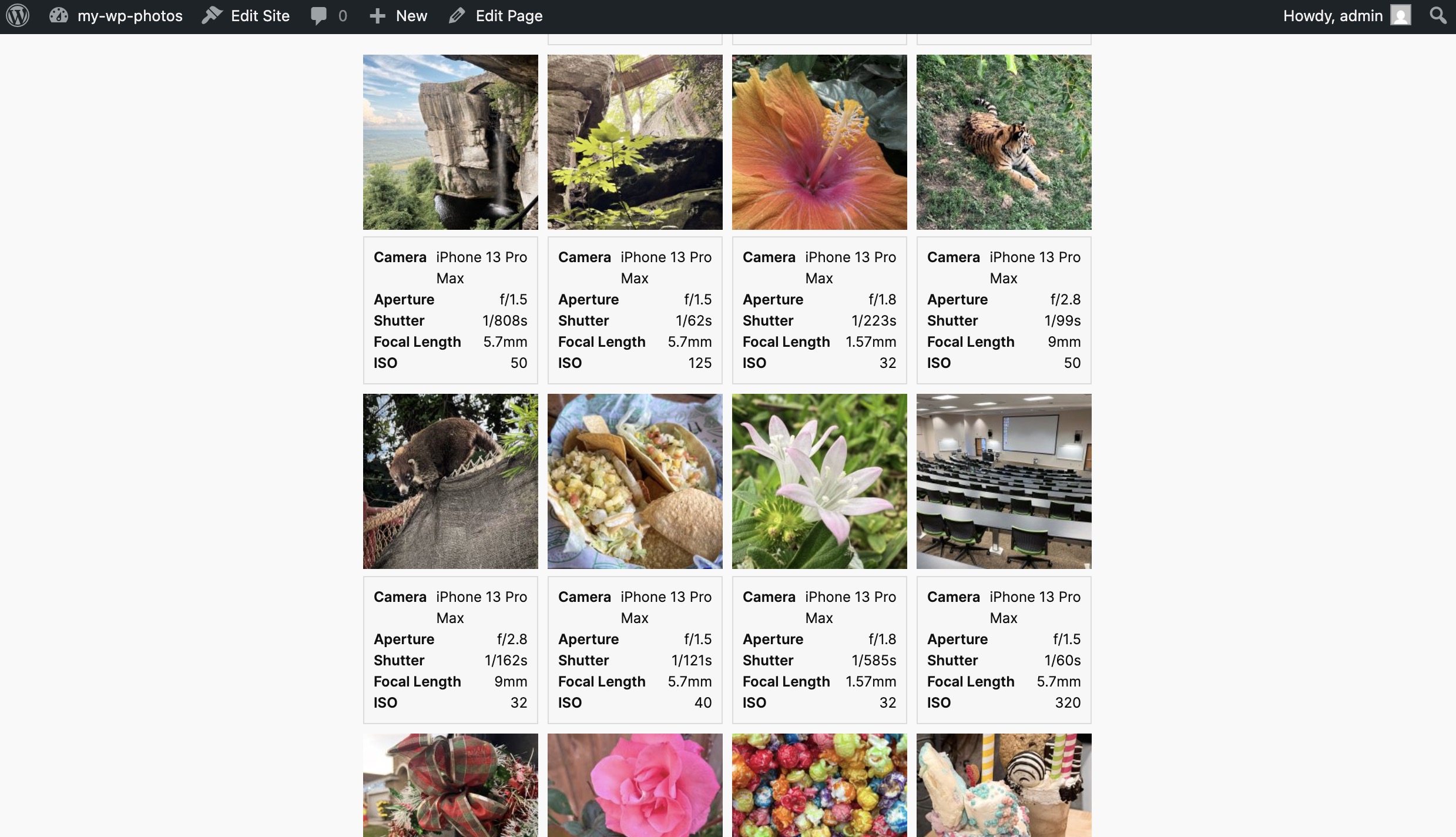
– show_exif: set to true to show camera EXIF metadata below each image
Example shortcode:
[wp_photo_directory username=”mdburnette” count=”24″ columns=”4″ aspect=”landscape” size=”large” random=”true” show_caption=”true” show_exif=”true”]
Default Settings
Admins can configure plugin defaults at Settings > My WP Photos. These defaults are used when shortcode/block attributes are not explicitly provided.
Editors can override any default at the shortcode or block level.
WordPress Photo Directory
This plugin uses the REST API provided by the WordPress Photo Directory to determine the author ID from the username and load the corresponding photo list. The directory can also be visited at https://wordpress.org/photos.
All photos are CC0 licensed. No rights are reserved, so you are free to use the photos anywhere, for any purpose, without the need for attribution.
Learn more at https://wordpress.org/photos/faq/
Accessibility and Performance
- Uses semantic list markup for gallery items.
- Includes alt text fallbacks, lazy loading, and async image decoding.
- Caches author lookups and photo API responses with transients.
- Supports paginated requests so larger
countvalues can exceed 100 photos. - Includes responsive column scaling so configured columns reduce on smaller screens.
Internationalization
- Includes
Text DomainandDomain Pathmetadata. - Includes a translation template at
languages/my-wp-photos.pot.
스크린샷
설치
- Upload the
my-wp-photosplugin to your site and activate it. - Optional: Configure plugin-wide defaults in Settings > My WP Photos.
- Add the WP Photos Gallery block to a post/page and configure settings in the sidebar, or add the
[wp_photo_directory]shortcode. - Set a username in the block/shortcode, unless you configured a default username in plugin settings.
후기

기여자 & 개발자

변경이력
1.0 (February 14, 2026)
- Added WP Photos Gallery block for the block editor with live dynamic preview.
- Added plugin admin settings page for default gallery values.
- Added shortcode/block-level overrides for plugin defaults.
- Added
columnssetting (max 6) with responsive column scaling. - Added
randomsetting for shortcode and block. - Added
show_captionsetting to display image captions/content below images (default off). - Added
show_exifsetting to display camera metadata below images (default off). - Added support for any positive
countvalue via paginated API requests. - Added
languages/my-wp-photos.potfor translation readiness. - Improved accessibility with semantic markup and image loading attributes.
- Added transient caching and API response validation.
- Improved shortcode/block attribute validation and sanitization.
0.0.1 (November 8, 2023)
- Initial plugin release.