
설명
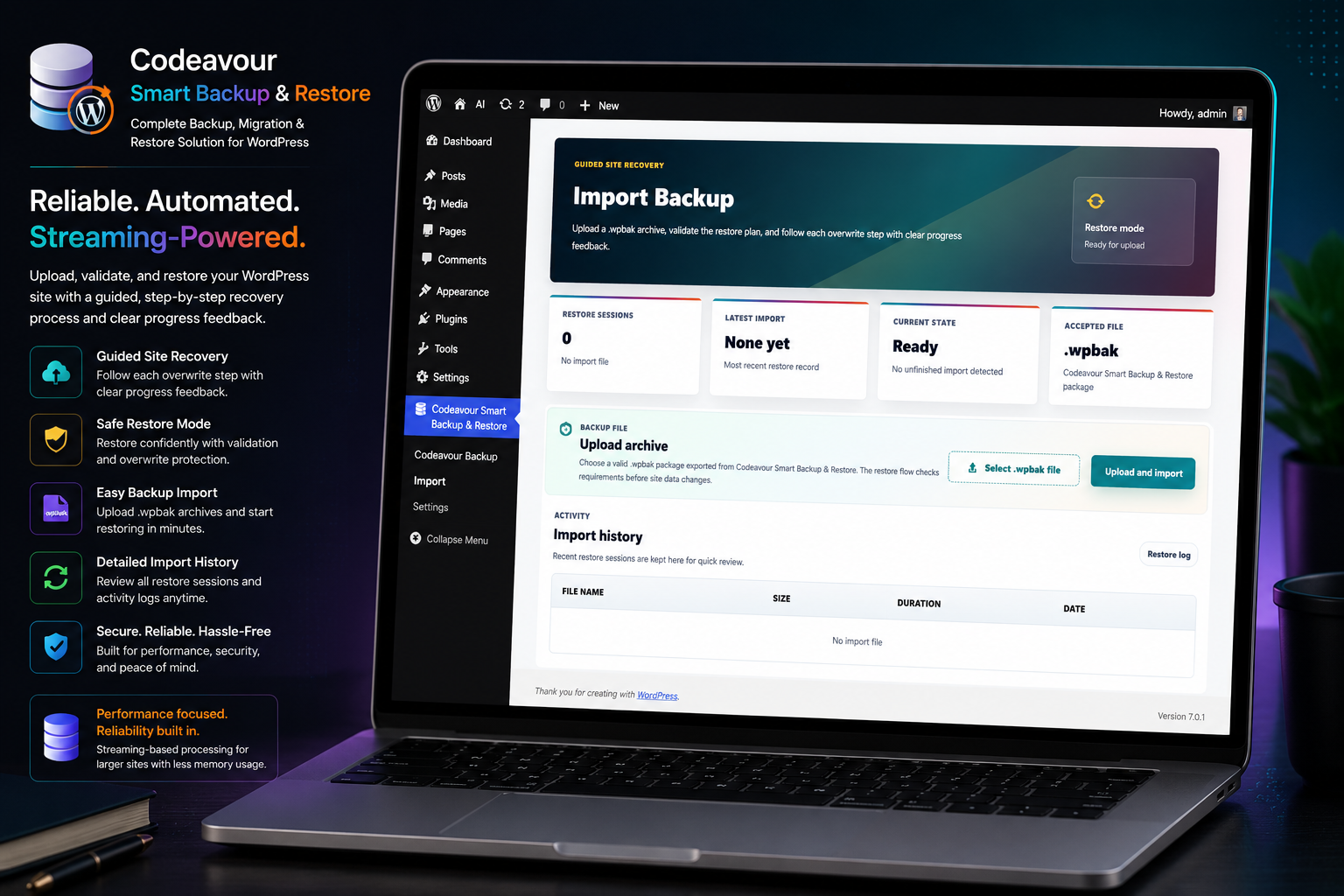
Codeavour Smart Backup & Restore provides a complete solution for WordPress site backup, migration, and restore. It is designed for performance and reliability, using streaming-based processing to reduce memory pressure during backup and restore operations.
Key features include:
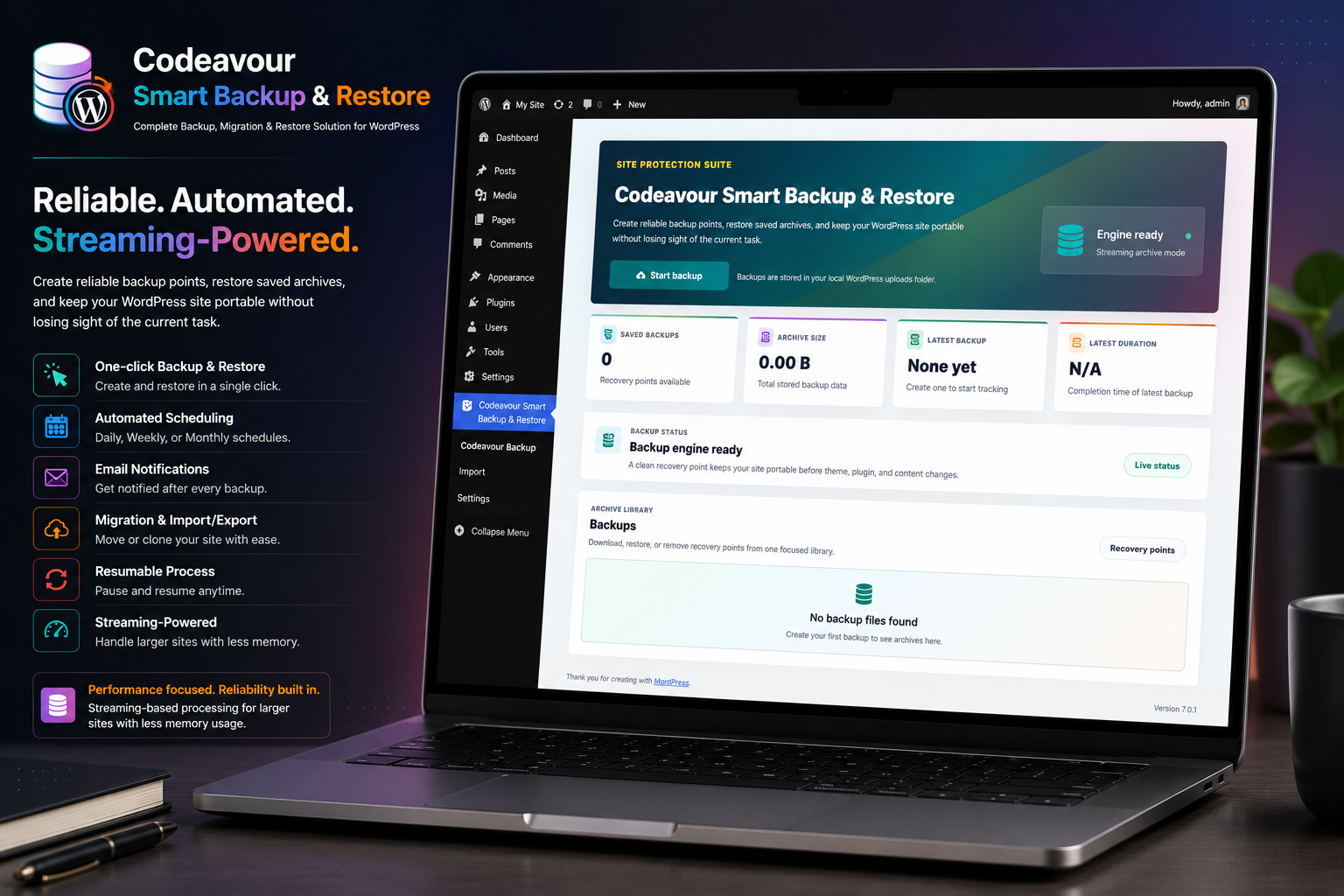
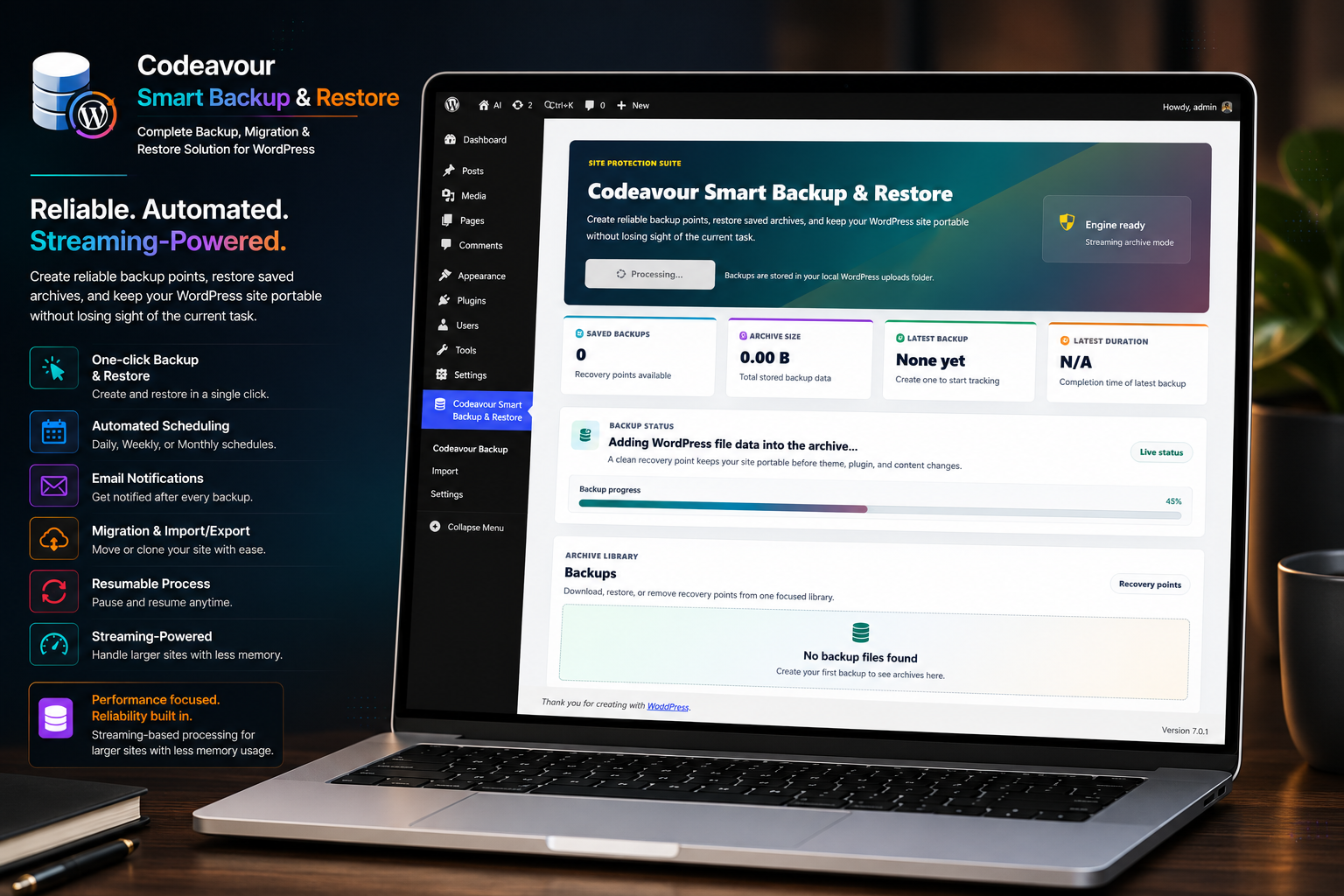
– One-click backup and restore
– Automated scheduling (Daily, Weekly, Monthly)
– Email notifications for scheduled backup results
– Site migration and import/export support
– Streaming-based processing to support larger backup and restore operations
– Resumable backup and restore process
– Interactive Feature Guidelines (Onboarding Tour)
– Smart Review Notice System
– Lightweight and performance optimized
Scheduled Backups
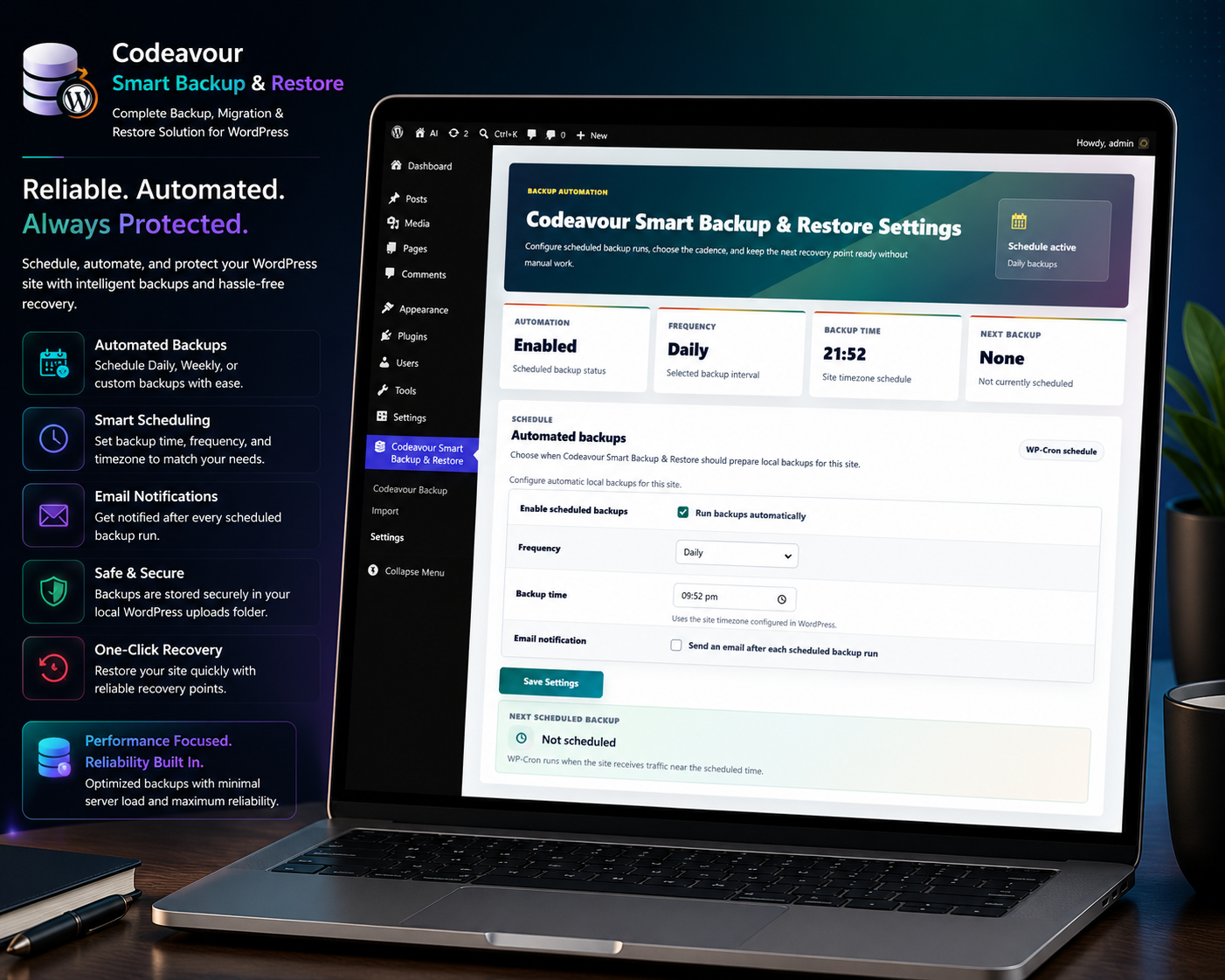
Codeavour Smart Backup & Restore includes built-in scheduled backups powered by WordPress WP-Cron. Site administrators can enable automatic backups from the Codeavour Smart Backup & Restore Settings page and choose a Daily, Weekly, or Monthly schedule.
Scheduled backup options include:
– Enable or disable automatic backups
– Choose the backup frequency
– Select the backup time using the site’s WordPress timezone
– Choose the weekly day or monthly date when needed
– Send email notifications after scheduled backup runs
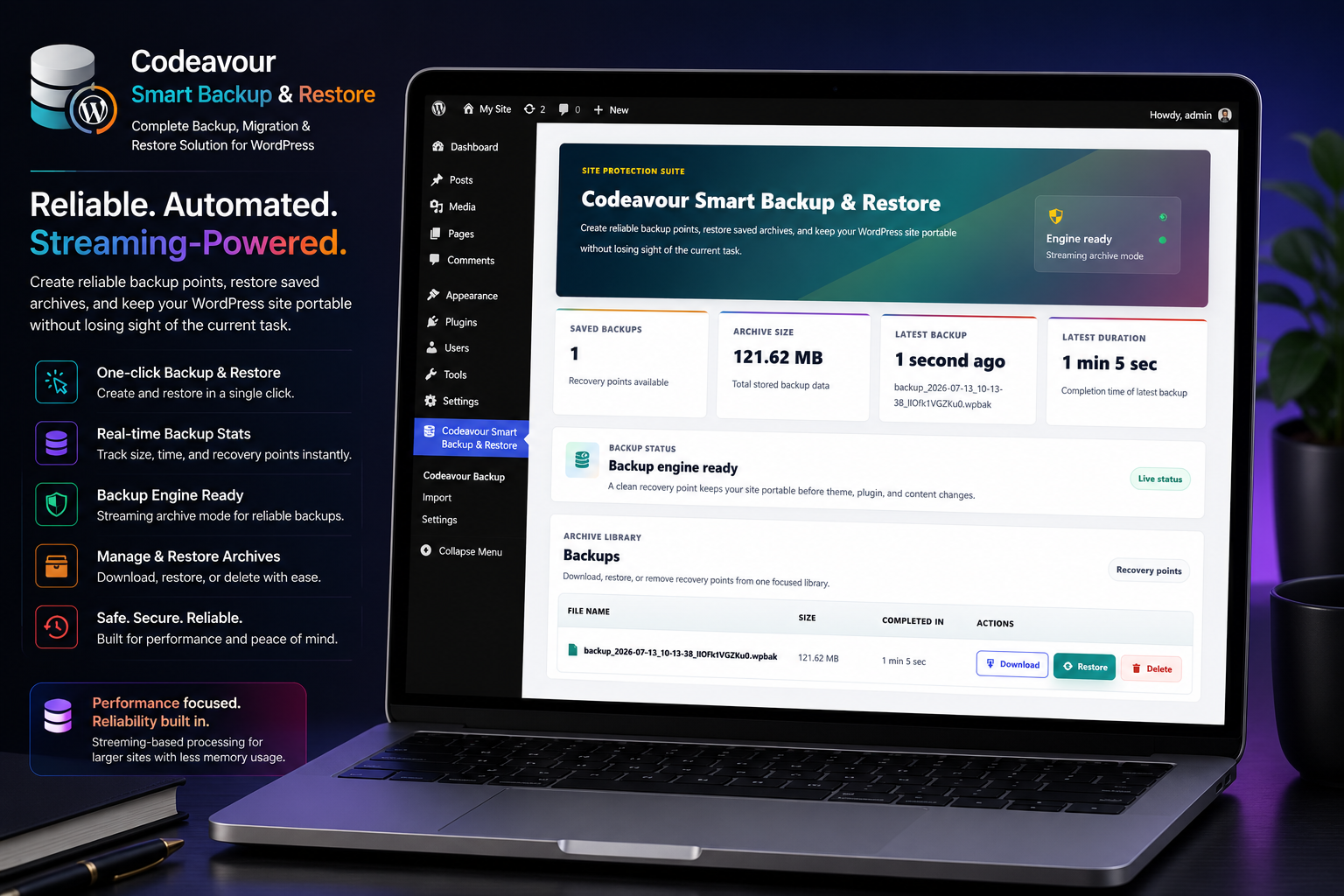
The scheduled backup event runs through the plugin’s background backup engine, so it uses the same backup process as manual backups. Backup archives are stored in the Codeavour Smart Backup & Restore backup directory and appear in the dashboard backup list.
WP-Cron depends on site traffic. If no one visits the site near the scheduled time, WordPress may run the backup later when the next request reaches the site. For production sites that need exact timing, configure a real server cron to call WordPress cron regularly.
Review Notice
After using the plugin, a review notice will appear on the plugin dashboard and WordPress admin dashboard. You can:
– Click “Ok, you deserve it” to leave a 5-star review on WordPress.org
– Click “Nope, maybe later” to snooze the notice for 7 days
– Click “I already did” to permanently dismiss the notice
스크린샷
설치
- Upload the plugin files to the
/wp-content/plugins/codeavour-smart-backup-restoredirectory, or install via the WordPress plugins screen. - Activate the plugin through the ‘Plugins’ menu in WordPress.
- Open the Codeavour Smart Backup & Restore dashboard to create or restore backups.
- Open Codeavour Smart Backup & Restore > Settings to configure scheduled backups and email notifications.
FAQ
-
Does it support large websites?
-
Yes, it uses a streaming engine designed for large sites, capable of handling archives.
-
Can I migrate my site to another server?
-
Yes, import/export functionality supports full site migration.
-
How do scheduled backups work?
-
Scheduled backups use the WordPress WP-Cron system. Codeavour Smart Backup & Restore registers a scheduled event and runs the backup at the selected Daily, Weekly, or Monthly interval. WP-Cron runs when the site receives traffic, so the backup may run slightly later than the selected time on low-traffic sites.
-
Do scheduled backups use the same engine as manual backups?
-
Yes. Scheduled backups run through the same streaming backup engine used by manual backups. The scheduled process runs in the background and creates a normal
.wpbakarchive. -
Why did my scheduled backup not run at the exact selected time?
-
WordPress WP-Cron is traffic based. If the site has no visitors at the scheduled time, WordPress waits until the next request to run due cron events. For stricter timing, use a real server cron that triggers
wp-cron.php. -
Why are email notifications not arriving?
-
Email notifications require the scheduled backup email option to be enabled and a valid notification email address to be saved. On local servers such as XAMPP, WordPress usually needs SMTP configuration before
wp_mail()can send email. -
What happens to existing backup files if the plugin is uninstalled?
-
Codeavour Smart Backup & Restore stores backup archives in its server-side backup directory. If the plugin is uninstalled, those existing backup files remain on the server unless they are removed manually. If the plugin is installed again later, the plugin will detect the existing backup archives and display them again in the backup list.
-
How does the review notice work?
-
A review notice appears on the plugin pages and WordPress dashboard after you have used the plugin. You can leave a review, snooze it for 7 days, or permanently dismiss it. The notice will not appear again once dismissed.
후기
이 플러그인에 대한 평가가 없습니다.
기여자 & 개발자

자국어로 “Codeavour Smart Backup & Restore”(을)를 번역하세요.
개발에 관심이 있으십니까?
변경이력
1.1
- Added Interactive Feature Guidelines (Onboarding Tour)
- Added Smart Review Notice with snooze and dismiss options
- Improved post-restore reliability for large database restorations
- Introduced state-based capture mechanism to preserve the active plugin list before import begins
- Ensured all previously active plugins are automatically re-enabled after large-scale database import operations
- Performance improvements and minor bug fixes
1.0
- Initial release of Codeavour Smart Backup & Restore
- Added scheduled backups with Daily, Weekly, and Monthly WP-Cron support
- Added scheduled backup email notifications