

설명
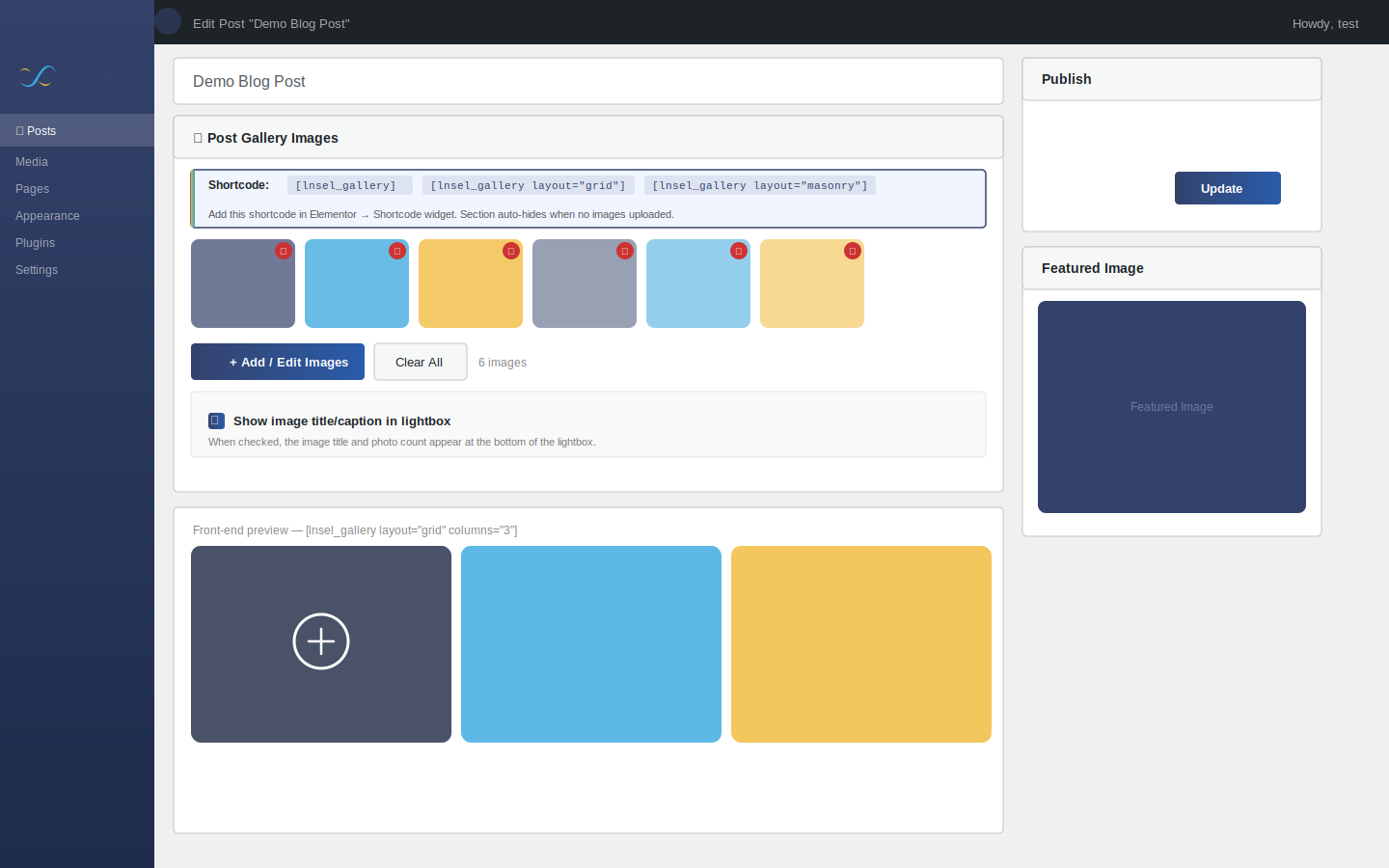
Lnsel Post Gallery Lightbox lets you upload a dedicated set of gallery images to any post or page via a custom meta box in the WordPress editor. Those images are then displayed on the front end using the [lnsel_gallery] shortcode — with a smooth lightbox, keyboard navigation, touch swipe support, and a choice of Grid or Masonry layout.
Key Features:
- 📷 Custom “Post Gallery Images” meta box on every post/page edit screen
- 🖼 Drag-and-drop image reordering in the editor
- ⚡ Choose between Grid (uniform tiles) or Masonry (Pinterest-style) layout
- 🔍 Built-in lightbox with arrow navigation, keyboard ( Esc), and touch swipe
- 📱 Fully responsive — 4 3 2 1 columns at breakpoints
- 🙈 Gallery section is completely hidden when no images are uploaded
- 🔌 Works with Elementor via the Shortcode widget
- No jQuery dependency on the front end — pure vanilla JS
Usage
Basic:
[lnsel_gallery]
Grid layout, 3 columns:
[lnsel_gallery layout=”grid” columns=”3″]
Masonry layout, 3 columns:
[lnsel_gallery layout=”masonry” columns=”3″]
All available attributes:
layout—gridormasonry(default:grid)columns—2,3, or4(default:3)size—thumbnail,medium,large, orfull(default:large)gap— gap between images in px, number only (default:10)
스크린샷
설치
- Upload the
lnsel-post-gallery-lightboxfolder to/wp-content/plugins/, or install via the WordPress Plugins screen. - Activate the plugin through the Plugins screen in WordPress.
- Edit any post or page — you will see a “📷 Post Gallery Images” meta box below the content editor.
- Click “Add / Edit Images” to select one or more images from your Media Library.
- Add the shortcode
[lnsel_gallery]to your post content or to an Elementor Shortcode widget.
FAQ
-
The gallery section does not appear on my post.
-
Make sure you have added at least one image in the “📷 Post Gallery Images” meta box on the post edit screen, then also added the
[lnsel_gallery]shortcode to your post content or Elementor template. The section is intentionally hidden when no images are uploaded. -
Can I use this with Elementor?
-
Yes. Add an Elementor Shortcode widget and paste
[lnsel_gallery]into it. -
What is the difference between Grid and Masonry?
-
Grid displays all images at a fixed 4:3 aspect ratio in uniform rows. Masonry preserves each image’s natural height, creating a Pinterest-style staggered layout using CSS columns — no JavaScript library required.
-
Can I set a different gallery for each post?
-
Yes. Each post or page has its own independent gallery managed through the meta box.
-
Does this work without Elementor?
-
Yes. The shortcode works in the Gutenberg block editor via a Shortcode block, or in the Classic Editor.
후기
이 플러그인에 대한 평가가 없습니다.
기여자 & 개발자

자국어로 “Lnsel Post Gallery Lightbox”(을)를 번역하세요.
개발에 관심이 있으십니까?
변경이력
1.0.4
*Update Plugin Name
1.0.3
- Updated Author URI to correct WordPress.org profile.
- Minor internal improvements and version bump.
1.0.2
- Fixed lightbox spinner stuck when show_title is disabled (null-guard caption/counter elements).
- Fixed show_title checkbox defaulting to unchecked — now correctly defaults to checked on new posts.
- Improved show_title resolution: only explicit ‘0’ means hidden; unset defaults to shown.
1.0.1
- Fixed lightbox image not loading when show_title disabled (JS null reference).
- Fixed admin checkbox default state.
- Version bump to bust browser cache for frontend.js.
1.0.0
- Initial release.
- Custom meta box for per-post gallery image management.
- Grid and Masonry layout options via shortcode attribute.
- Drag-and-drop reordering in the editor.
- Responsive lightbox with keyboard and touch swipe support.
- All CSS and JS in properly enqueued external files.
- Full output escaping throughout.
- Unique
lnsel_pgl_prefix on all functions, hooks, meta keys, and handles.