
설명
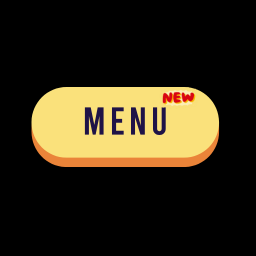
Menu Tooltip is a WordPress plugin that allows administrators to add text icons and Dashicons as tooltips to menu items. Icons can be aligned above or below the submenu text, and they can be customized for color, blinking, and alignment.
Unique Features of this plugin are :
- Text Icon Selection: Choose from predefined icons (\”New\”, \”Fresh\”, \”Hurry!\”) for submenu items.
- 10 most popular Dashicons also can be chosen.
- Color Customization: Customize the color of the selected text icon.
- Blinking Effect: Enable a blinking effect for the icon.
- icon Alignment: Align the icon slightly above or below the end of the submenu text.
스크린샷


설치
– WordPress 6.0 or higher – PHP 7.0 or higher
Steps
- Download the Plugin: Obtain the
menu-tooltip.zipfile containing the plugin files. - Upload the Plugin
-Go to the WordPress admin dashboard.
– Navigate to Plugins > Add New
– Click Upload Plugin and choose the
menu-tooltip.zipfile. – Click Install Now Activate the Plugin After installation, click Activate to enable the plugin. How to Use
Navigate to Settings > Menu Tooltip in the WordPress admin dashboard.
- The settings page allows you to configure tooltips for your menus and submenus.
Configuring Menu Tooltips
Select Menu: – Choose a WordPress menu from the dropdown list. – Once a menu is selected, a second dropdown will appear to choose a submenu.
Select Sub-menu**: – Choose the submenu item where you want to add an icon.
Select Text Icon: – Pick an icon (“New”, “Fresh”, “Hurry!” or any of the 10 most popular Dashicons) to display next to the submenu item. These are : (i) User/Profile; (ii) Settings/Gear; (iii) Search/Magnifying Glass; (iv) Menu/Hamburger (three horizontal lines); (v) Shopping Cart; (vii) Envelope/Mail; (viii) Bell/Notifications; (ix) Calendar; (x) Bookmark/Flag;
Icon Color**: – Use the color picker to select a custom color for the icon.
Enable Blinking**: – Check the box to enable a blinking effect for the icon.
Icon Alignment**: – Choose between “Top” or “Bottom” to align the icon slightly above or below the submenu text.
Add More**: – Click Add More to configure additional submenu items.
Save Changes**: – Click Save Changes to apply the configurations.
FAQ
Can I use the real icon and not just an icon ?
No, in the current version, only three text icons -New, Hurry, and Fresh—can be chosen to show over the menu. Apart from that I have also put 10 most popular Dashicons.
후기
이 플러그인에 대한 평가가 없습니다.
기여자 & 개발자

변경이력
=1.2=
Bugs in Add More button removed.
=1.1=
Added 10 Dashicons to select as menu tooltip
1.0
initial release